01
Your new economy starts here
From invoice to portfolio in the same view. NordCapital brings together what you need to make decisions – quickly, clearly and the Nordic way.
From quote to cash to capital.
Manage customers, products, invoices, quotes, payments and reports – connected in one place. Invite your accountant with their own login and give them supporting reports directly in the app.
Data transfer is done when possible. Depending on your existing data structure, some links may not be possible to migrate (such as products - customers - invoices - inventory - quotes). Import of an existing stock portfolio may have limitations, e.g. with a very large number of transactions per instrument. Preferred file formats: CSV, JSON, XML, XLSX, XLS. Free data import does not apply to demo accounts.
An integrated flow from customer to cash to capital.
01
From invoice to portfolio in the same view. NordCapital brings together what you need to make decisions – quickly, clearly and the Nordic way.
02
Create, manage and send invoices and quotes. Send and receive e-invoices, send reminders and keep a clear view of accounts receivable.
03
Customer register with history, documents and easy search. Keep track of all your business contacts.
04
Product catalog, prices and stock. Update stock levels automatically, alert on low stock and more.
05
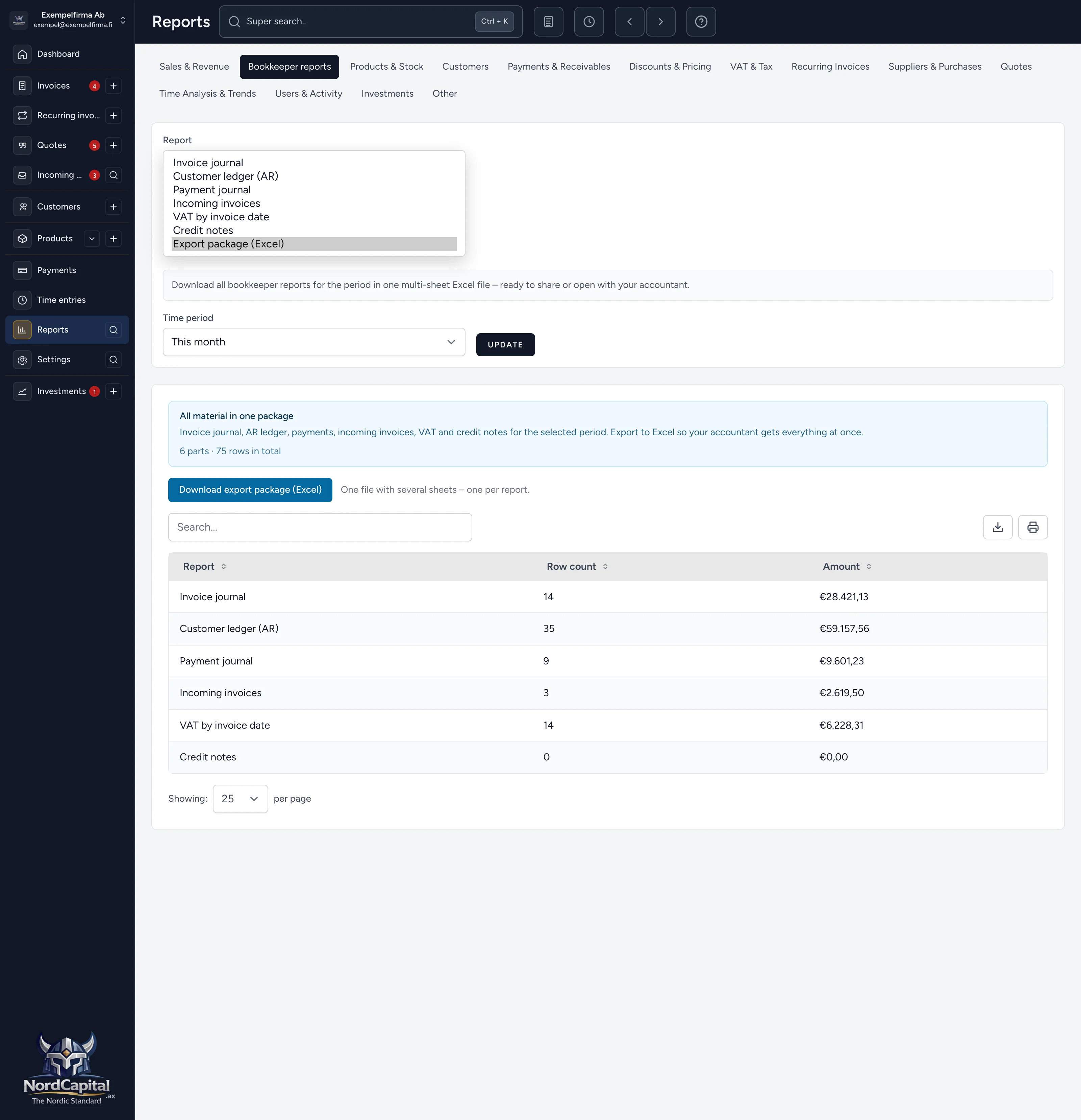
Overview, sales, VAT – plus dedicated material for your accountant: invoice journal, customer ledger, payment journal and Excel package. Invite your accountant with their own login.
06
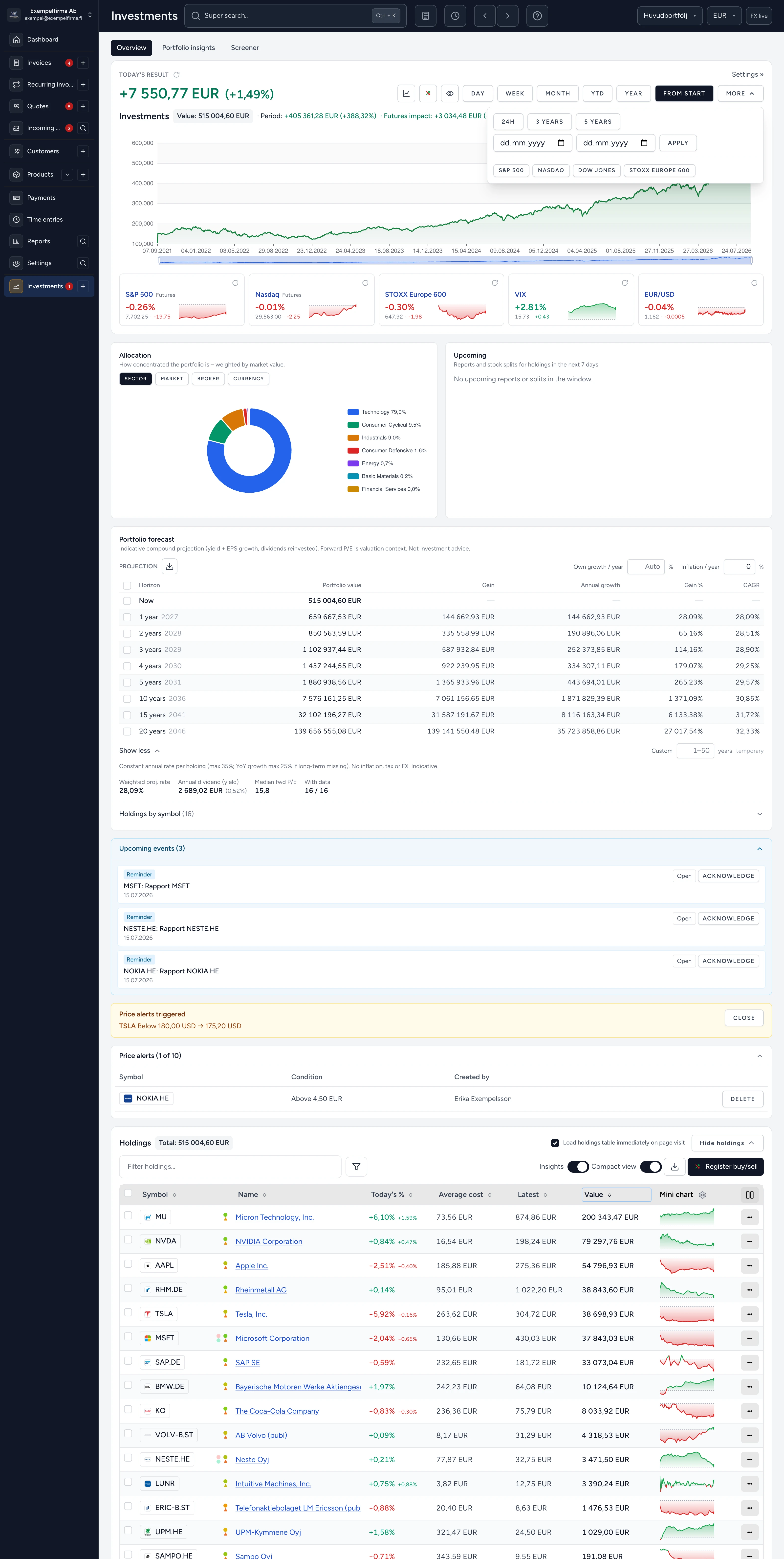
Track your portfolio with instruments from around the world. Get price alerts, see how futures affect your portfolio, and much more.
07
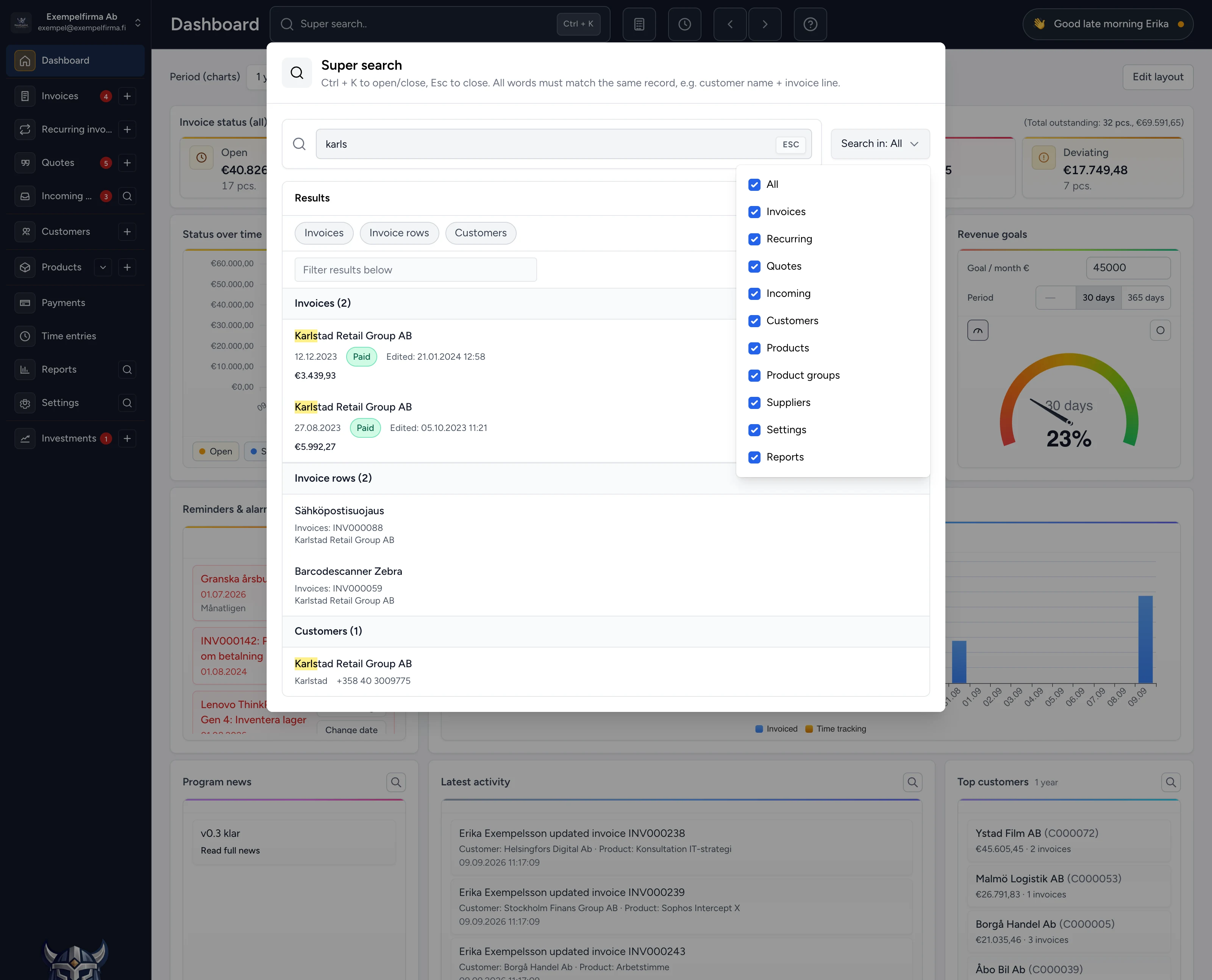
Find customers, invoices, products and more – instantly from a single search box.
08
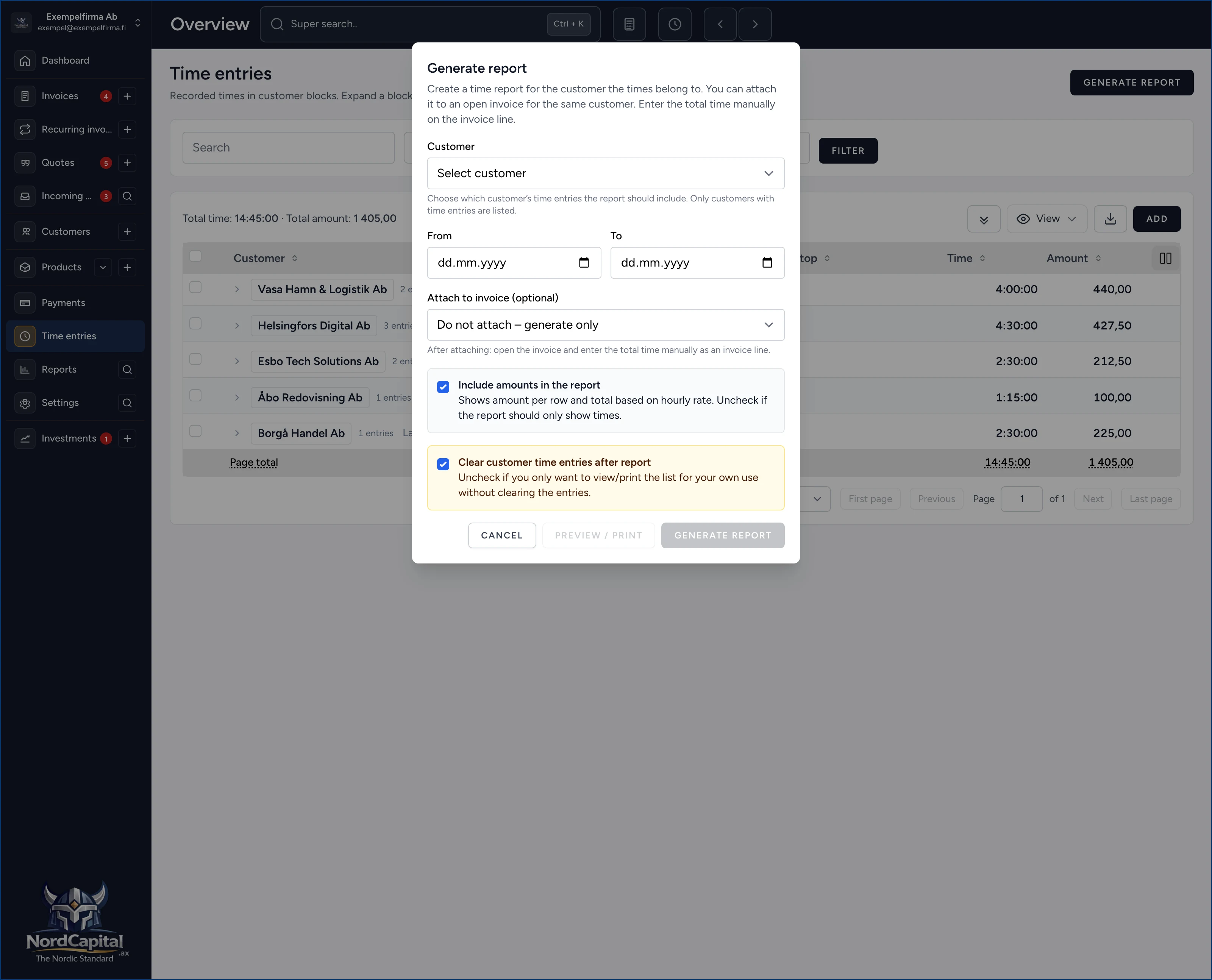
Everything from custom reports to built-in AI features.
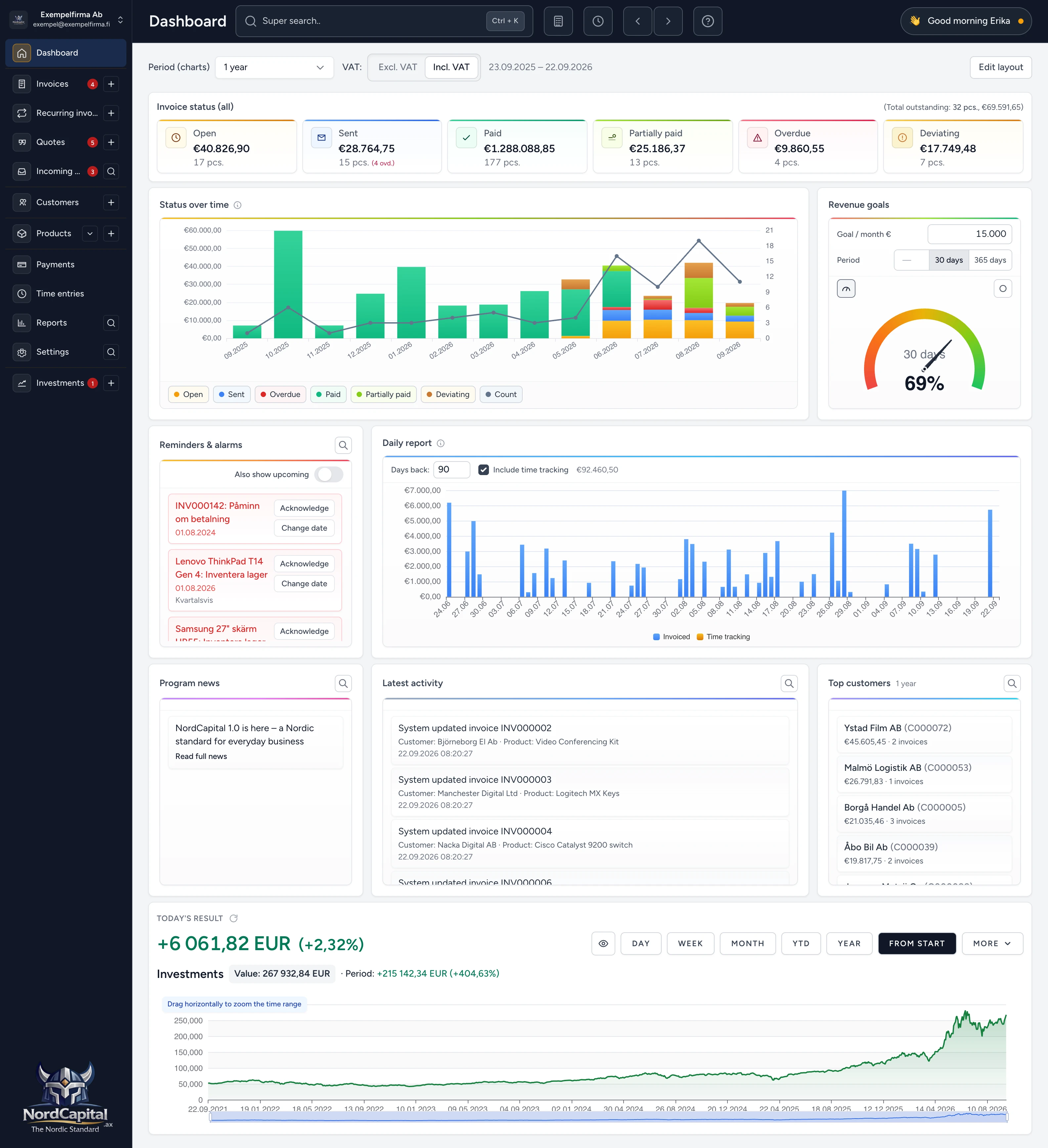
Overview, daily report, sales and cash flow – key numbers you can trust right away.
Click the company name to switch companies, change language and theme, manage your profile or sign out. Everything in one place — even if you run several businesses.
Search customers, invoices, products, application settings and more from a search field that always sits at the top. Filter results in more detail when needed. Find what you need in seconds without clicking through menus. The shortcut Ctrl+K or Cmd+K also opens super search directly.
A personal greeting and quick access to notifications and account settings. Stay on top of what has happened in the app since you signed in.
A quick overview of key figures that update continuously so you see where you stand right away. Click to open a list of current invoices.
A bar chart showing how your result develops month by month. Compare periods and spot trends before they show up in your accounts. Click a bar to open the list of invoices that make up that bar.
See how close you are to your revenue target. You can choose the classic gauge (Gauge) shown in the image, or a more modern ring (Ring). It gives a quick sense of whether you are ahead or behind — without digging through reports. Choose 30 or 365 days as quick options, or enter your own number of days.
A list of overdue and pending invoices, plus manual and automatic reminders from all data records (invoices, customers, products, quotes, and more) with amounts and status. See at a glance what needs a reminder or follow-up, acknowledge or snooze a reminder to a better time.
See how revenue grows day by day. Click a bar to open the list of invoices that make up that bar. Include time tracking (on by default) adds unbilled time from time reporting to the same bars in a different colour — when the time is invoiced, that part of the bar changes colour.
Here you can see what is being updated in the application behind the scenes.
A log of what has happened recently — invoices, payments, changes and more. Adds traceability and quick orientation in daily work.
Your most important customers ranked by revenue or activity. See who drives the business — and who deserves extra attention.
Track your portfolio value and performance over time. See today's change in currency and percent — linked to your investment instruments. For deeper insight and instrument analysis, open "Investments".
Configure invoicing, customers, products and company details – organised in clear sections so you find what you need quickly.
All settings are under this menu in their own submenus. Click the magnifying glass to search for any setting directly.
All settings are grouped into sections in the submenu. Choose invoicing, customers, texts & language, for example – you only see what belongs to that area.
Sometimes it is hard to know where to find a setting. Here you have built-in search for settings too. You can reach the same search via super search or the magnifying glass in the left menu under Settings.
Search customers, invoices, products, application settings and more from a single box. Filter results in more detail when needed.
Open from anywhere in the app with Ctrl+K (or click and type in the search field always at the top) – close with Esc. Find customers, invoices, products, settings and more without browsing menus.
Start typing and matches appear as you go. Multiple words must all hit the same record – e.g. customer name plus an invoice line.
Choose All or limit to invoices, customers, products, quotes, settings and more. Less noise when you know where to look.
Click a label – Invoices, Invoice lines, Customers or similar – to show only that type of hit.
Filter the results below further without starting the search over.
Hits are grouped by type with the essentials visible – name, status, date and amount. Matching text is highlighted, and a click takes you straight to the record.
Build your invoice line by line – products, VAT, discounts and totals update as you work.
Filter invoice lines right in the table. Find the right product or row without scrolling through the whole list.
This appears when one or more invoice lines are selected. Delete the selected lines, copy them as new lines, or set today’s date on all selected lines in one go.
Here the floating totals widget is fully collapsed – this is what it looks like.
View PDF, send email, send e-invoice, mark as paid, copy, archive … Some menu items are inactive – for example if the customer has no e-invoice address on the customer card, you cannot send an e-invoice from here.
See the actual invoice as a PDF – Ctrl+P. Check how it will look in the real world.
Add a new invoice line – click here or press Ctrl+N. The row opens straight away for editing so you can fill in product, quantity and price.
Hidden under the menu in the screenshot – expand/collapse all invoice lines, open them full size, and export the invoice lines for further work.
Choose which columns appear in the table and in what order. Show only what is relevant to your way of invoicing.
Start typing to search products in the product register. Results filter as you type so you quickly find the right one. If you cannot find the product you need, you can create a new one right away. Or enter free text without linking to the product register. You can also add more text after the product name on a line from the register – the link is kept (e.g. for stock) as long as the product name remains at the start.
Search for a product in more depth using multiple search fields.
Enter a separate discount per invoice line – as an amount or a percentage.
Here you can see the invoice total discount in real time in both amount and percentage.
Track portfolio value, holdings and transactions – with price charts, alerts and market insight per instrument.
See today's result and portfolio value in real time – including period performance and futures impact.
Choose how long a period the chart shows – day, week, month, YTD, year or from (the portfolio's) start.
Additional time periods (24h, 3 years, 5 years), a custom date range, and a comparison chart of your portfolio performance against indices such as S&P 500, Nasdaq, Dow Jones and STOXX Europe 600.
Add one or more indices to the chart and compare the portfolio with e.g. S&P 500, Nasdaq, Dow Jones or STOXX Europe 600.
Follow portfolio value over time in a clear chart. Drag in the chart to zoom in, or choose a time period above.
Drag the timeline under the chart to zoom and move through the period. (Various indices appear below – choose which ones in settings)
See how the portfolio is allocated – switch between sector, market and broker.
Reports and stock splits for your holdings in the next x days (set the number of days in settings).
Indicative projection of portfolio value ahead based on growth assumptions per holding.
Steer the outlook with your own growth per year or Auto, and adjust inflation for values in today's purchasing power.
Summary under the outlook: weighted projected rate, annual dividend, median fwd P/E and how many holdings have data.
Report dates and other important events for your holdings. Open the instrument or acknowledge directly in the list.
When an instrument crosses your level, triggered alerts gather here – jump to the instrument or dismiss what you have already handled.
All investments in a clear list with today's %, average cost, latest price, value and mini chart. Filter, show insights and sort as needed. Choose columns to suit your preference and screen space – the choice is saved automatically and stays the same next time.
Add buys or sells directly from the list so the portfolio and history stay up to date.
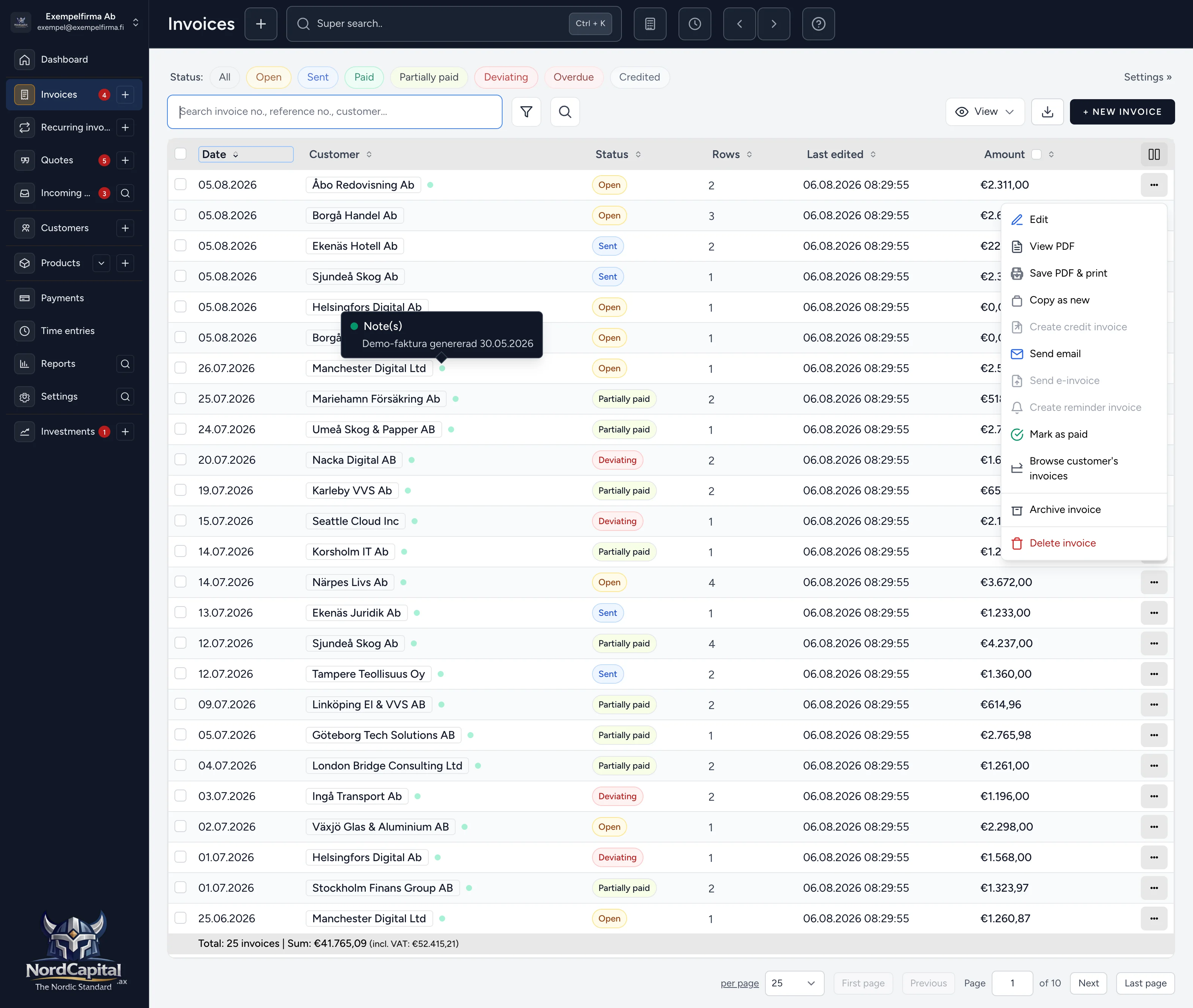
All invoices in one clear list – filter, search, export and manage without losing your place.
Choose what to show in the invoice list – open, sent, paid and more. One click activates the filter button; another click turns it off. Select one or more in the combinations you need. If none are selected (as here), everything is shown. Depending on where you came from, the list may already be pre-filtered for what you need right now.
Search by invoice number, reference or customer name. The list filters as you type so you find the right invoice quickly. The search box is always active as soon as you arrive on the page.
Open advanced filters for date, amount and document type. Combine conditions with AND or OR and apply when you want to refine the list.
Search across many fields – individually or together.
Switch between compact view and show archived invoices. Adapt the list to how you want to work right now.
Export invoices to formats such as Excel or CSV. Use the export for further analysis, accounting or sharing with colleagues.
Choose which columns to show and drag to reorder. Hide what you do not need and reset widths with one click.
Send, remind, credit or void – all common actions in one menu. Do what you need without leaving the list.
Click the customer name to go directly to the invoice.
Colour dots show whether the invoice has notes, reminders or attachments. Hover for a quick overview without opening the invoice.
Navigate between pages when you have many invoices. Totals and invoice counts are shown at the bottom of the table, even when the list is filtered – for example the sum of sent invoices.
From draft to sent — clear steps, no friction.
Create a new invoice with the + button or continue editing existing drafts. Everything lives under Invoices.
Jump to the previous or next invoice with the arrows or keyboard.
Invoice status controls which actions are available, for example in the actions menu. Only Open status is fully editable (but locked invoices can be unlocked manually).
See net, VAT and total while you work. Drag the box anywhere or collapse it – the position is saved.
View PDF, send email, send e-invoice, mark as paid, copy, archive … Some menu items are inactive – for example if the customer has no e-invoice address on the customer card, you cannot send an e-invoice from here.
Link the invoice to the right customer. Address, payment terms and e-invoice details are pulled automatically from the customer card. Start typing and customers filter in real time. If there is no match, you can create a new customer right from here.
Open advanced customer search – free text, tabs and dedicated fields for name, customer number, VAT no., tags and more. Click a result to select the customer.
Choose whether a bank giro should be printed with the invoice – private customers may appreciate it; unnecessary for e-invoices, for example. The barcode is always printed regardless.
The due date is taken automatically from the customer’s default payment terms, or (if those are missing in the customer register) from the default payment terms in settings. You can change it to anything you want here.
See the invoice status and when it last changed. Status controls which actions are available in menus, among other things. Status is usually updated automatically with other events, but you can also change it manually here. Any status other than open locks the invoice for editing. The lock can still be opened.
Tag the invoice for easier filtering and follow-up in lists and reports. Tags appear on all entities.
Build your invoice line by line – products, VAT, discounts and totals update as you work.
Filter invoice lines right in the table. Find the right product or row without scrolling through the whole list.
This appears when one or more invoice lines are selected. Delete the selected lines, copy them as new lines, or set today’s date on all selected lines in one go.
Here the floating totals widget is fully collapsed – this is what it looks like.
View PDF, send email, send e-invoice, mark as paid, copy, archive … Some menu items are inactive – for example if the customer has no e-invoice address on the customer card, you cannot send an e-invoice from here.
See the actual invoice as a PDF – Ctrl+P. Check how it will look in the real world.
Add a new invoice line – click here or press Ctrl+N. The row opens straight away for editing so you can fill in product, quantity and price.
Hidden under the menu in the screenshot – expand/collapse all invoice lines, open them full size, and export the invoice lines for further work.
Choose which columns appear in the table and in what order. Show only what is relevant to your way of invoicing.
Start typing to search products in the product register. Results filter as you type so you quickly find the right one. If you cannot find the product you need, you can create a new one right away. Or enter free text without linking to the product register. You can also add more text after the product name on a line from the register – the link is kept (e.g. for stock) as long as the product name remains at the start.
Search for a product in more depth using multiple search fields.
Enter a separate discount per invoice line – as an amount or a percentage.
Here you can see the invoice total discount in real time in both amount and percentage.
All quotes in one clear list – search, filter and manage status without losing your place.
Search by quote number, reference number or customer name. The list filters as you type so you find the right quote quickly. The search box is always active as soon as you arrive on the page.
Open filters to narrow the quote list by date, status, customer and more. Combine conditions when you want to refine the result.
Adjust how the list is shown – for example compact view or which quotes to display. Switch view to match how you want to work right now.
All quotes live here. The number shows how many active quotes you have. Create a new quote, for example with the plus button directly in the menu – wherever you happen to be in the app.
Choose which columns to show in the quote list and drag to reorder. Hide what you do not need and reset widths with one click.
Edit, view PDF, send email, approve and create invoice, extend validity or delete. Common steps gathered in one menu per quote.
Create and edit a quote with basic details, lines and actions – convert to an invoice when the customer says yes.
See open and overdue invoices, record payments and upload bank files – accounts receivable in one place.
Upload a bank file from your bank to acknowledge payments quickly.
Acknowledge quickly using today’s date as the payment date. Or acknowledge with a custom payment date.
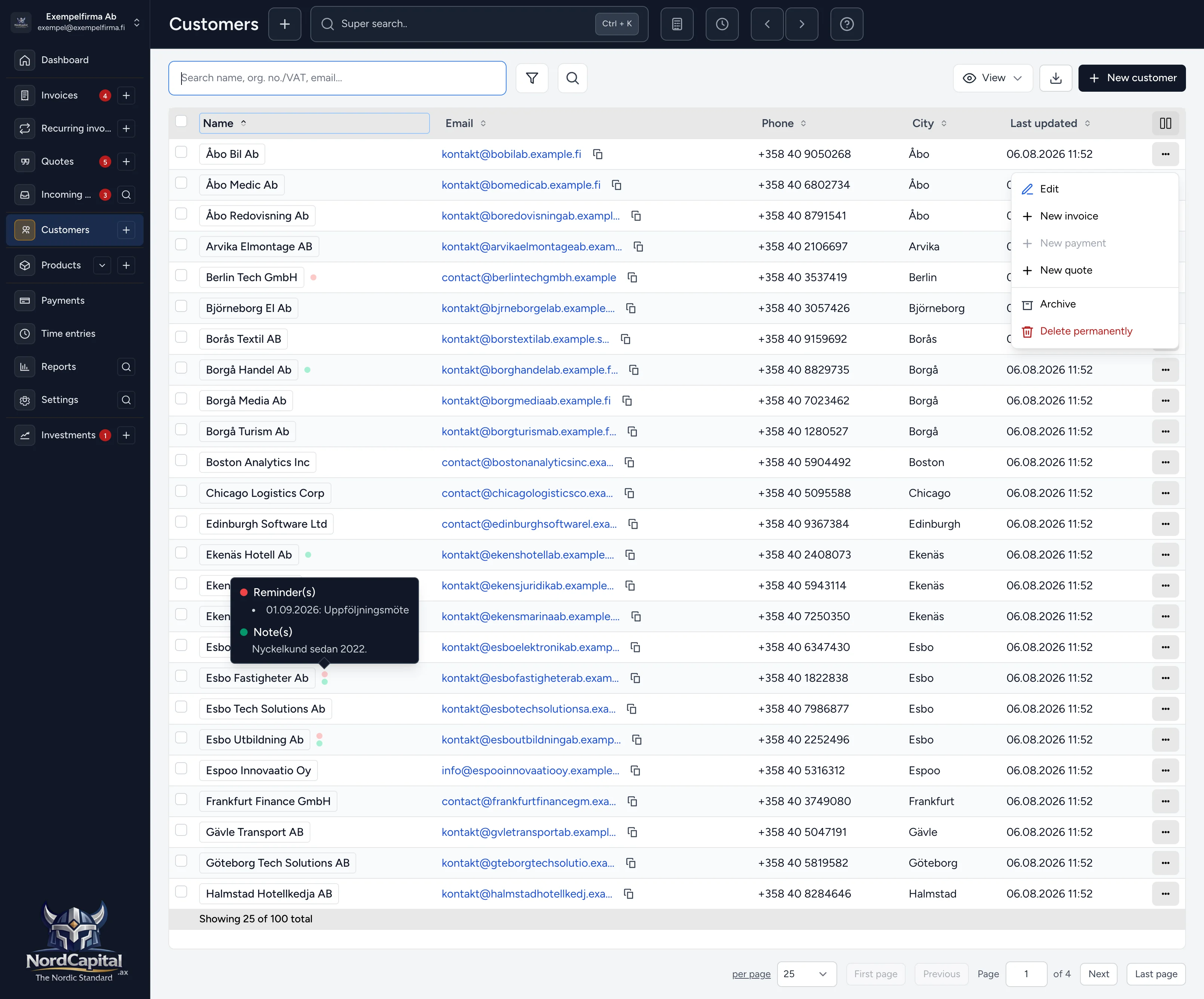
All customers in one clear list – search, filter, export and manage without losing your place.
Search by name, org. no./VAT or email. The list filters as you type so you find the right customer quickly.
Filter by reminders, notes, documents and tags. Combine conditions with AND or OR.
Search across many fields – basic info, contact, addresses and notes – individually or together.
Switch between compact view and show archived customers. Adapt the list to how you want to work right now.
Export the customer list to CSV, Excel, PDF and more – all, filtered, or only selected records.
This list, like others in NordCap, is sortable. Your sorting is saved so it stays the same next time.
Choose which columns to show and drag to reorder. Hide what you do not need and reset widths with one click. Saved automatically.
Edit, create invoice, quote or payment, archive or delete – all common actions in one menu.
Click a customer to open the customer card for more information, invoices, customer statistics or to edit customer details.
Coloured markers next to the customer name show reminders, notes and documents. Hover the markers to see reminders and notes directly in the list without opening the customer card.
Everything about the customer in one place – contact, invoices, quick actions and overview.
From the customer card straight to a new invoice—no context switching.
Create a quote and track its progress until it becomes an invoice.
Export the customer invoice list directly from the customer card for analysis or sharing.
Send an email right from the card.
Choose which columns to show in the invoice list for the right working view.
Open the invoice row menu for quick actions like view, edit, or print.
Edit customer details – contact, tags and more organised in clear tabs.
Create invoice/quote, register payment, or archive the customer directly from here.
Use Customers in the menu to return quickly to the register for search and filtering.
Use tags for faster filtering in the customer list and better follow-up and reporting. Tags are available across all entities.
Set e-invoice address and operator so the customer can receive e-invoices.
Keep the same workflow: create documents or manage the customer from the top controls.
Enter the recipient e-invoice address for correct electronic delivery.
Select the correct operator/routing so invoices are delivered through the right channel.
Open the register (Verkkolaskuosoite) to find the right address when details are missing.
See invoice status, average amount and payment patterns per customer.
See the most important customer KPIs – including payment time and average amount.
Open the statistics tab for a clear per-customer overview.
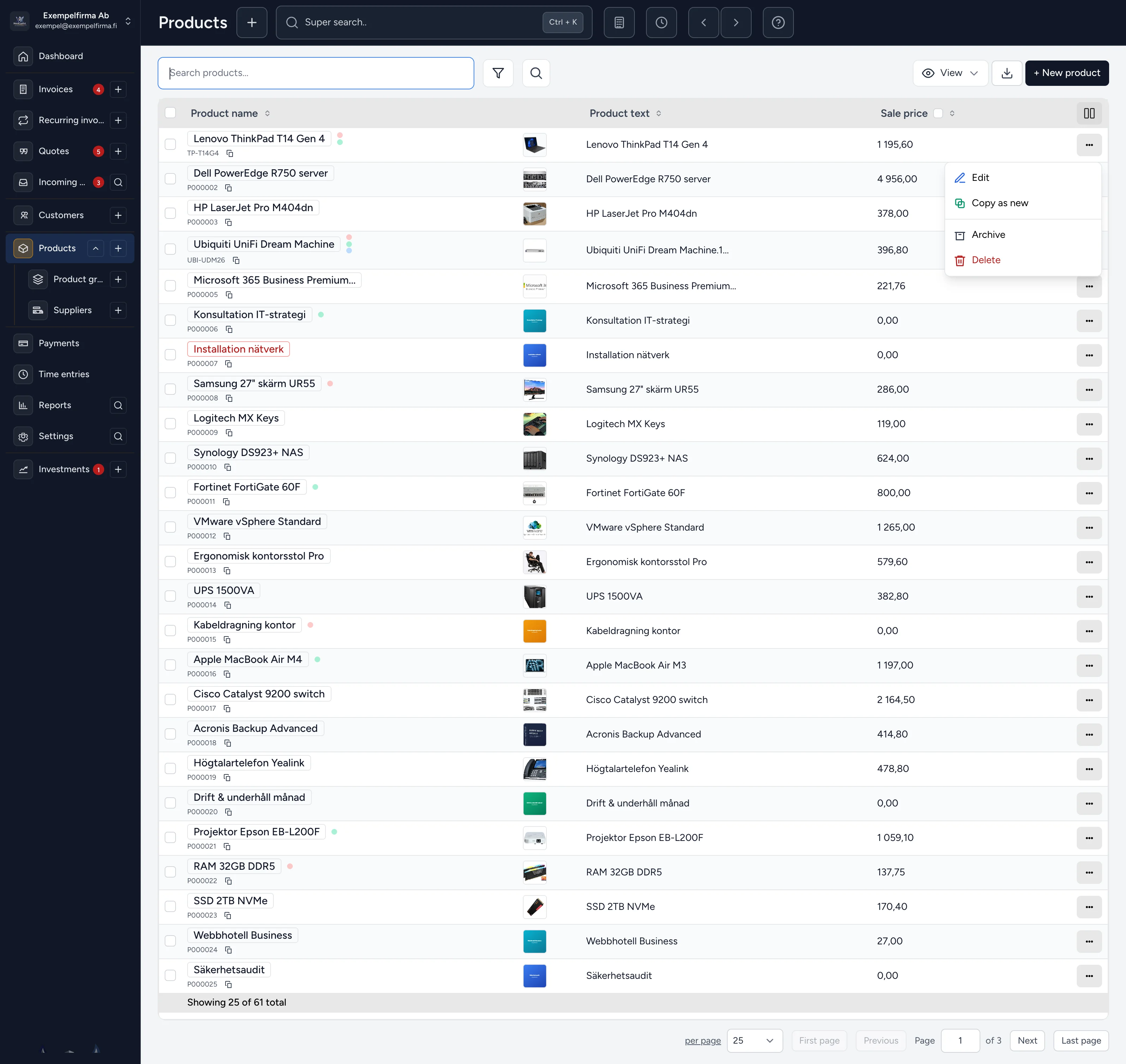
All products in one clear list – search, filter, export and manage stock without losing your place.
Search by product name or product number. The list filters as you type so you find the right product quickly.
Filter the list further – combine conditions when you want to refine the selection.
Search across many fields – individually or together – when simple search is not enough.
Switch between compact view and show archived products. Adapt the list to how you want to work right now.
Export the product list to different formats for further analysis, accounting or sharing.
Choose which columns to show and drag to reorder. Hide what you do not need and reset widths with one click. Saved automatically.
Click the product name to open the product card – more information, stock and editing.
See the product image directly in the list. Click to enlarge or manage the image.
Edit, copy, archive or delete – all common actions in one menu.
Coloured markers next to the product name show e.g. low stock or other follow-ups. Hover for quick info without opening the product card.
Open the product for stock, prices, images and more – everything in one place.
Export your product as a PDF. If you need custom layouts or several different ones (price labels with barcodes, banners.. contact sales@nordcapital.ax.
Product code, supplier, EAN, stock, category and unit – all core details in one clear panel.
Purchase and sales price, profit margin, VAT, purchase date, warranty and shelf location – everything you need for pricing and follow-up. Use the built-in pocket calculator’s Profit tab to work out the margin quickly and easily.
Product thumbnails. Click to enlarge or manage the images.
Notes, reminders, documents and history – switch tabs to see everything linked to the product.
Update name, prices, VAT, stock and other details. Changes show up directly in invoices and quotes.
Tag the product for easier filtering and follow-up in lists and reports. Tags are available on all entities – customers, products, invoices and more.
Set purchase and sales prices with VAT, margin and markup – the pocket calculator figures profit instantly.
Set VAT, purchase price and selling price (excl. and incl. VAT). Profit and markup are calculated instantly so you see the margin while you edit.
Open the calculator from the top bar and choose the Profit tab. Fill in any field – the others update immediately: profit, margin % and markup %. Profit is always calculated excl. VAT.
All suppliers in one clear list – search, filter and keep track of purchasing contacts.
Contact details, terms and notes – edit the supplier when you need to.
Bookkeeper material with journals and an Excel package – plus VAT, sales and more in one place.
Choose a report type to analyze invoice-based sales from different perspectives. You can then filter by time period to compare development over time. Reports: Revenue overview, Revenue by period, Daily report, Revenue by customer, Revenue by invoice type, Revenue by delivery terms, Revenue by status, Revenue by tag, VAT declaration. Time period: Today, This week, This month, This quarter, This year, Previous week, Previous month, Previous quarter, Previous year, Last 7 days, Last 30 days, Last 90 days, 1 year, Custom period.
Here your accountant gets the supporting material they need – directly in the app, with their own login if you invite them. Reports: Invoice journal, Customer ledger (AR), Payment journal, Incoming invoices, VAT by invoice date, Credit notes, Export package (multi-sheet Excel). Export the period as an Excel package and share it – or let your accountant fetch it themselves. Time period: Today, This week, This month, This quarter, This year, Previous week, Previous month, Previous quarter, Previous year, Last 7 days, Last 30 days, Last 90 days, 1 year, Custom period.
Use this tab to follow sales, stock status and inventory turnover per product. Great for finding top sellers, low-rotation items and products without sales. Reports: Product sales, Sales by product group, Sales by category, Sales by supplier, Stock status, Inventory turnover, Products without sales, Shelf locations/stock placement. Time period: Today, This week, This month, This quarter, This year, Previous week, Previous month, Previous quarter, Previous year, Last 7 days, Last 30 days, Last 90 days, 1 year, Custom period.
Provides customer insights such as total revenue, activity and segmentation. Useful for identifying top customers and customers that need reactivation. Reports: Customer statistics, Customer revenue, Top customers, Customers without sales, Customer segmentation. Time period: Today, This week, This month, This quarter, This year, Previous week, Previous month, Previous quarter, Previous year, Last 7 days, Last 30 days, Last 90 days, 1 year, Custom period.
Focuses on incoming payments, overdue invoices and deviating payment patterns. Used for follow-up of liquidity and credit risk. Reports: Payment status, Overdue invoices, Payments by period, Payment analysis, Partial payments, Deviating payments. Time period: Today, This week, This month, This quarter, This year, Previous week, Previous month, Previous quarter, Previous year, Last 7 days, Last 30 days, Last 90 days, 1 year, Custom period.
Shows how discounts affect revenue and margins. Supports decisions around pricing strategy and profitability. Reports: Discount analysis, Discount by customer, Discount by product, Pricing, Margin analysis. Time period: Today, This week, This month, This quarter, This year, Previous week, Previous month, Previous quarter, Previous year, Last 7 days, Last 30 days, Last 90 days, 1 year, Custom period.
Collects VAT data for follow-up and reporting. Used to break down VAT by period, type and product group. Reports: VAT by period, VAT by invoice type, VAT by product group, VAT-free sales. Time period: Today, This week, This month, This quarter, This year, Previous week, Previous month, Previous quarter, Previous year, Last 7 days, Last 30 days, Last 90 days, 1 year, Custom period.
Provides an overview of subscription and recurring invoice flows. You can follow what has been generated, what is upcoming and distribution by frequency. Reports: Overview, Generated invoices, By frequency, Upcoming invoices. Time period: Today, This week, This month, This quarter, This year, Previous week, Previous month, Previous quarter, Previous year, Last 7 days, Last 30 days, Last 90 days, 1 year, Custom period.
Focuses on purchasing and supplier performance. Helps you analyze volume, value and supplier dependencies. Reports: Purchases by supplier, Supplier statistics, Supplier products. Time period: Today, This week, This month, This quarter, This year, Previous week, Previous month, Previous quarter, Previous year, Last 7 days, Last 30 days, Last 90 days, 1 year, Custom period.
Shows the quote flow from created quote to conversion or expiry. Good for measuring hit rate in the sales process. Reports: Quotes – overview, Conversion analysis, Expired quotes, Quotes by customer. Time period: Today, This week, This month, This quarter, This year, Previous week, Previous month, Previous quarter, Previous year, Last 7 days, Last 30 days, Last 90 days, 1 year, Custom period.
Shows development over time from monthly, quarterly and yearly perspectives. Used for trend analysis, seasonality and period comparison. Reports: Monthly trend, Quarterly trend, Yearly trend, Seasonal variation, Period comparison. Time period: Today, This week, This month, This quarter, This year, Previous week, Previous month, Previous quarter, Previous year, Last 7 days, Last 30 days, Last 90 days, 1 year, Custom period. Sub-selection logic: Period comparison has separate date fields for Period 1 and Period 2.
Analyzes activity per user linked to invoices and edits. Useful for internal follow-up and workload distribution. Reports: User activity, Created invoices per user, Edited invoices per user. Time period: Today, This week, This month, This quarter, This year, Previous week, Previous month, Previous quarter, Previous year, Last 7 days, Last 30 days, Last 90 days, 1 year, Custom period.
Provides reports for portfolio holdings, broker comparisons and instrument results. Used for investment follow-up and portfolio analysis. Reports: Holdings by broker, Transactions by broker, Brokerage fees by broker, Instruments with multiple brokers, Instrument overview (result & holding time), Portfolio highest value (EUR and date). Time period: No time period in this tab.
Collects support reports that do not belong to a single business domain. Practical for administration, follow-up and history. Reports: Email log, Document report, Reminders, Tags. Time period: Today, This week, This month, This quarter, This year, Previous week, Previous month, Previous quarter, Previous year, Last 7 days, Last 30 days, Last 90 days, 1 year, Custom period.
Customise your dashboard – add widgets, rearrange and save a layout that fits you.
Save the dashboard when you are happy with the layout.
Choose which widget to add to the dashboard.
Move and adjust widgets – make the dashboard your own.
Compare report outcomes over time with a clear chart and table for fast follow-up.
Give your accountant their own login. They reach invoices, payments and ready supporting reports – journals and Excel package – right in the app.
Track portfolio value, holdings and transactions – with price charts, alerts and market insight per instrument.
See today's result and portfolio value in real time – including period performance and futures impact.
Choose how long a period the chart shows – day, week, month, YTD, year or from (the portfolio's) start.
Additional time periods (24h, 3 years, 5 years), a custom date range, and a comparison chart of your portfolio performance against indices such as S&P 500, Nasdaq, Dow Jones and STOXX Europe 600.
Add one or more indices to the chart and compare the portfolio with e.g. S&P 500, Nasdaq, Dow Jones or STOXX Europe 600.
Follow portfolio value over time in a clear chart. Drag in the chart to zoom in, or choose a time period above.
Drag the timeline under the chart to zoom and move through the period. (Various indices appear below – choose which ones in settings)
See how the portfolio is allocated – switch between sector, market and broker.
Reports and stock splits for your holdings in the next x days (set the number of days in settings).
Indicative projection of portfolio value ahead based on growth assumptions per holding.
Steer the outlook with your own growth per year or Auto, and adjust inflation for values in today's purchasing power.
Summary under the outlook: weighted projected rate, annual dividend, median fwd P/E and how many holdings have data.
Report dates and other important events for your holdings. Open the instrument or acknowledge directly in the list.
When an instrument crosses your level, triggered alerts gather here – jump to the instrument or dismiss what you have already handled.
All investments in a clear list with today's %, average cost, latest price, value and mini chart. Filter, show insights and sort as needed. Choose columns to suit your preference and screen space – the choice is saved automatically and stays the same next time.
Add buys or sells directly from the list so the portfolio and history stay up to date.
Analyst sentiment and price targets for your holdings – with sell suggestions per broker when you want to free up capital.
Analyst sentiment and price targets for your holdings – quickly see which positions analysts favor most.
Sort the cards by sentiment, upside, buy case, holding value or symbol – so you find interesting cases faster.
Enter an amount to free up and get sell suggestions – preferably at the same broker and with as few trades as possible based on your priority.
Each card shows average analyst sentiment and upside to the mean target price. Click for more instrument details.
Find instruments by region, sector, market cap, P/E, sentiment and upside – open them directly from the results.
Select one or more regions – USA, Europe, Asia and the Nordics weigh equally. At least one region is required.
Narrow results by sector, market cap, P/E, forward P/E and dividend yield – combine as needed.
Enable the gauges and drag to your threshold. Instruments without data are excluded when those filters are on.
Track buys and sells in your history – and register stock splits so quantity and average cost update automatically.
Buys and sells in a clear history – filter, edit or delete. You can choose to load the list as soon as you open Investments.
Enter symbol, market and split ratio so quantity and average cost update automatically. E.g. 1:4 gives four times as many shares at one quarter of the cost per share.
Search customers, invoices, products, application settings and more from a single box. Filter results in more detail when needed.
Open from anywhere in the app with Ctrl+K (or click and type in the search field always at the top) – close with Esc. Find customers, invoices, products, settings and more without browsing menus.
Start typing and matches appear as you go. Multiple words must all hit the same record – e.g. customer name plus an invoice line.
Choose All or limit to invoices, customers, products, quotes, settings and more. Less noise when you know where to look.
Click a label – Invoices, Invoice lines, Customers or similar – to show only that type of hit.
Filter the results below further without starting the search over.
Hits are grouped by type with the essentials visible – name, status, date and amount. Matching text is highlighted, and a click takes you straight to the record.
Log time per customer, generate a report and attach it to an invoice – ready for billing.
See total time and amount per customer – ready when it is time to invoice.
Pick customer and period, attach to an open invoice and clear time entries afterwards if you want.
Link the report to an invoice for the same customer – from time to invoice without extra steps.
Subscriptions and fixed contracts – automatic invoicing with frequency, next run and status.
Templates for subscriptions and fixed contracts – create once, generate automatically.
See how often the invoice is created and when the next run happens – colour-coded so upcoming ones stand out.
Active templates count toward the monthly total – pause when the contract ends.
Receive e-invoices in your inbox – status, quick actions and a clear view of what is waiting.
Inbox for received e-invoices – supplier, amount, due date and status in one list.
Filter by New, Reviewed, Paid or Archived – and search by supplier or invoice number.
Mark reviewed or paid, view PDF/XML and handle several rows at once.
Always at hand: VAT, profit/margin and compound interest with a curve – without leaving the app.
Open from the top bar anytime – VAT, percent, profit and interest without changing page.
Adjust starting capital, return and years with sliders – see final value and curve instantly.
Copy the final value and paste where you need it – in an invoice, quote or note.
See concentration by sector and an indicative outlook ahead – with growth, dividends and key ratios.
Donut chart of the portfolio by sector, market, broker or currency – spot concentration fast.
Indicative projection ahead with growth, inflation and CAGR – not investment advice, but a clear direction.
Weighted projected rate, annual dividend and median forward P/E under the forecast.
Template, PDF attachment and status to Sent – professional delivery straight from the invoice.
Template, recipients, subject and message – attach PDF and update status to Sent on successful send.
From the same menu: PDF, e-invoice, reminder, mark paid, copy or credit – the full flow in one place.
The customer gets the invoice as an attachment – no manual generate-and-email step.
Triggered price alerts, upcoming reports and holdings in one view – so you act in time.
When the price crosses your level the alert shows here – open the instrument or dismiss what you already handled.
Reports and other key dates for your holdings – with reminder and acknowledge.
Positions with today’s %, unrealized P/L, broker and mini chart – filter and register buys/sells directly.